
Maximize Productivity: The Ultimate Guide to Using Google Drive Like a Pro
In today’s fast-paced digital landscape, efficient file management, seamless collaboration, and readily accessible information are paramount for both individuals and organisations aiming to maximise their productivity. Google Drive has emerged as a cornerstone of modern digital workflows, offering a robust and versatile platform for storing, organising, and sharing files. This comprehensive guide will delve into the intricacies of Google Drive, transforming you from a novice user into a seasoned professional, capable of leveraging its full potential. We will navigate the fundamental aspects of getting started, master the art of organisation, explore powerful collaboration features, unlock the capabilities of its integrated tools, discover its synergistic potential with other applications, share invaluable tips and tricks for workflow optimisation, and finally, address the critical considerations of security and privacy.
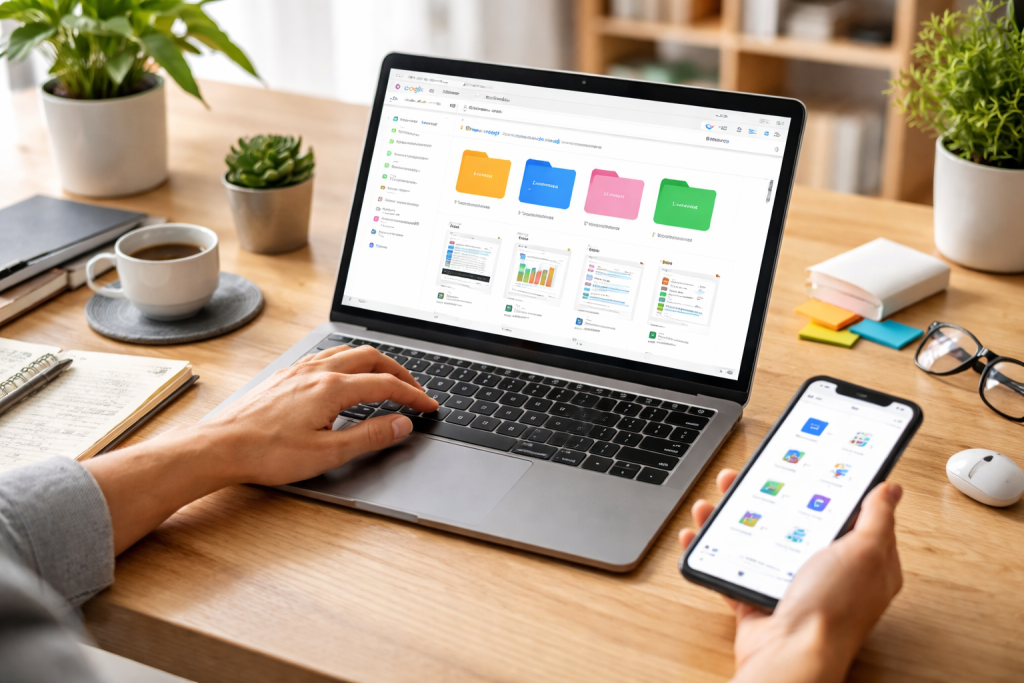
Embarking on your Google Drive journey is a remarkably straightforward process, even for those new to cloud-based storage solutions. The initial step involves setting up a Google account, a prerequisite for accessing all of Google’s services, including Drive. If you already have a Gmail account, you’ve already taken a step forward, as it already functions as your Google account. Upon logging into your Google account, navigating to Google Drive is as simple as clicking on the nine-dotted icon, often referred to as the “waffle” or “app launcher”, typically located in the top-right corner of the screen. From there, select “Drive”.
Contents
- 1 Creating and Uploading Your First Files
- 2 Understanding the Basic Interface
- 3 Setting Up Shared Folders for Initial Collaboration
- 4 Developing a Logical Folder Structure
- 5 Utilizing Naming Conventions Effectively
- 6 Leveraging Labels and Starring for Quick Access
- 7 Regular Auditing and Decluttering
- 8 Sharing Files and Folders with Granular Permissions
- 9 Real-Time Co-editing of Documents
- 10 Utilizing Comments and Suggestions for Feedback
- 11 Version History for Tracking Changes and Reverting to Previous States
- 12 Effective Use of Google Chat and Email Integration
- 13 Google Docs, Sheets, and Slides for Creation and Editing
- 14 Google Forms for Data Collection and Surveys
- 15 Google Drawings for Visual Communication
- 16 Leveraging Google Keep for Note-Taking and Task Management
- 17 Connecting Third-Party Apps via Google Workspace Marketplace
- 18 Using Zapier or IFTTT for Automation Workflows
- 19 Embedding Google Drive Files into Websites and Blogs
- 20 Utilizing Google Drive for Digital Asset Management
- 21 Mastering the Powerful Search Functionality
- 22 Utilizing Keyboard Shortcuts for Faster Navigation
- 23 Setting Default Upload Locations and Document Types
- 24 Leveraging Google Apps Script for Custom Automation
- 25 Batch Operations for Efficiency
- 26 Understanding Google’s Security Measures
- 27 Implementing Strong Passwords and Two-Factor Authentication
- 28 Carefully Managing Sharing Permissions
- 29 Being Aware of Phishing and Social Engineering Attempts
- 30 Regularly Backing Up Critical Data (as an Extra Precaution)
Creating and Uploading Your First Files
Once you are within the Google Drive interface, you will encounter a clean, intuitive layout. To begin populating your Drive, two primary methods exist. You can create new documents, spreadsheets, presentations, and even forms directly within Drive using Google’s suite of office applications, collectively known as Google Workspace (formerly G Suite). Simply click on the “+ New” button, then select the desired document type. You can upload files from your computer to store and access them remotely. Again, the “+ New” button offers a “File upload” or “Folder upload” option, allowing you to drag and drop files directly into the Drive interface or select them from your local storage.
Understanding the Basic Interface
Familiarising yourself with the fundamental elements of the Google Drive interface is crucial for efficient navigation. The left-hand sidebar is your primary control panel, featuring key sections such as “My Drive”, which houses all of your personal files and folders; “Shared with me”, where you’ll find documents and folders that others have granted you access to; “Recent”, displaying files you’ve recently opened or modified; “Starred”, for quick access to important files you’ve marked; and “Trash”, where deleted items are temporarily stored. The main central area displays the contents of your selected folder or view. Understanding these sections will empower you to locate and manage your files with ease.
Even at the beginner stage, it’s beneficial to understand the concept of sharing. Google Drive excels in its sharing capabilities. To get a head start on collaborative efforts, you can create a new folder, name it something descriptive like “Team Project Files”, and then click on the folder to open it. Within the folder, you can then upload or create documents. To share this folder with colleagues, right-click on the folder and select “Share”. You can then enter the email addresses of your team members and assign them specific access levels, such as “Viewer”, “Commenter”, or “Editor”. This foundational understanding of sharing will pave the way for more advanced collaboration later on.
The true power of Google Drive is unlocked when your files and folders are meticulously organised. A chaotic Drive quickly becomes a digital scrapyard, hindering productivity. Establishing a robust organisational system from the outset is therefore paramount. This isn’t a one-time task but an ongoing discipline that requires a thoughtful approach.
Developing a Logical Folder Structure
The cornerstone of efficient organisation lies in a logical and intuitive folder structure. This structure should reflect your workflow and the nature of your data. Consider creating top-level folders for major projects, departments, or categories of work. Within these, you can create subfolders to further refine your organisation. For example, a “Marketing” folder might contain subfolders for “Campaigns”, “Content Calendar”, “Analytics”, and “Brand Assets”. Avoid overly deep nesting of folders, as the result can make navigation cumbersome. Aim for a balance between specificity and simplicity.
Utilizing Naming Conventions Effectively
Consistent and descriptive naming conventions for both files and folders are essential. This practice allows you to quickly identify the content of a file without having to open it. Consider incorporating dates, keywords, project identifiers, or version numbers into your naming strategy. For instance, instead of naming a document “Report”, consider “2023-10-27_Q3_Sales_Report_v2”. Similarly, folder names should be unambiguous. A vague folder name like “Stuff” is far less effective than “Client Proposals – Q4 2023”.
Leveraging Labels and Starring for Quick Access
Google Drive offers powerful tools to enhance retrieval speed. The “Starred” feature is invaluable for marking frequently accessed or critical files and folders, making them instantly available from the sidebar. For a more nuanced approach to organisation, consider using labels or tags (though not a native Drive feature, similar functionality can be achieved through clever naming or by linking files). Some users opt for a system where a specific keyword at the beginning of a filename acts as a de facto label, allowing for quick identification when browsing or searching.
Regular Auditing and Decluttering
Just as a physical workspace needs regular tidying, your Google Drive requires periodic auditing and decluttering. Set aside time, perhaps weekly or monthly, to review your files and folders. Delete redundant or outdated documents, archive completed projects, and ensure your folder structure remains relevant and efficient. This proactive approach prevents clutter from accumulating and maintains the integrity of your organisational system.
Google Drive transcends mere file storage; it is a potent platform for collaborative productivity. Its real-time editing and sharing capabilities allow teams to work together seamlessly, regardless of their physical location.
Sharing Files and Folders with Granular Permissions
As touched upon earlier, the ability to share is central to Google Drive’s collaborative power. When sharing a file or folder, you have precise control over who can access it and what they can do. You can grant “Viewer” access, allowing users to only see the content. “Commenter” access enables them to leave feedback and suggestions without altering the document. “Editor” access provides full editing privileges, allowing them to make changes directly. This granular control ensures appropriate access levels are maintained, preventing accidental or unauthorised modifications.
Real-Time Co-editing of Documents
The magic of Google Drive for collaboration truly shines in its real-time co-editing features within Google Docs, Sheets, and Slides. When multiple users are working on the same document simultaneously, you can see their cursors moving in real time, their names appear next to their edits, and their contributions are instantly saved. This eliminates the need to send multiple versions of a document back and forth, drastically reducing confusion and increasing efficiency.
Utilizing Comments and Suggestions for Feedback
Beyond direct editing, Google Drive’s commenting system is a powerful tool for providing and receiving feedback. You can highlight specific text or select a particular element and add a comment. These comments can be assigned to specific team members, ensuring that feedback reaches the intended recipient. Furthermore, the “Suggesting” mode in Google Docs allows users to propose changes without directly altering the original text. The document owner can accept or reject these suggestions as tracked changes, ensuring a clear audit trail of revisions.
Version History for Tracking Changes and Reverting to Previous States
A critical feature for collaborative work is the robust version history available in Google Workspace applications. Every modification made to a document is automatically saved, creating a detailed history of revisions. This allows you to track who made what changes and when. If an error is introduced or a decision needs to be reversed, you can easily revert to a previous version of the document, providing a safety net and peace of mind.
Effective Use of Google Chat and Email Integration
While not directly within Drive itself, the integration of Google Chat and Gmail with Drive greatly enhances collaborative workflows. You can easily share links to Drive files directly within chat conversations, facilitating quick discussions and approvals. Similarly, email attachments can be easily saved to Drive, and documents can be shared via email with appropriate permissions. This seamless integration streamlines communication and ensures that all relevant documents are centrally managed and accessible.
Google Drive is more than just a storage locker; it’s an integrated suite of tools designed to boost your daily productivity. Beyond the core document editing, Google offers several features that can significantly streamline your workflow.
Google Docs, Sheets, and Slides for Creation and Editing
The foundational productivity tools within Google Drive are Google Docs (word processing), Google Sheets (spreadsheets), and Google Slides (presentations). These web-based applications are remarkably powerful and offer a compelling alternative to traditional desktop software. They support a wide range of features, including formatting, charting, formulas, and animations. Their real-time collaboration capabilities, as discussed, are a massive advantage for teams working together.
Google Forms for Data Collection and Surveys
Google Forms is an incredibly versatile tool for creating surveys, quizzes, and other forms for data collection. With a user-friendly drag-and-drop interface, you can easily design professional-looking forms with various question types, including multiple-choice, short answer, and checkboxes. Responses are automatically compiled into a Google Sheet, making analysis straightforward. This is invaluable for market research, gathering feedback, or organising event registrations.
Google Drawings for Visual Communication
For simpler visual tasks, Google Drawings provides a straightforward canvas for creating diagrams, flowcharts, mind maps, and basic illustrations. While not as feature-rich as dedicated graphic design software, it’s perfect for quick visual aids or for annotating existing images. Its integration with other Google Workspace applications means you can easily insert drawings into documents or Presentations.
Leveraging Google Keep for Note-Taking and Task Management
Google Keep, a note-taking service that integrates with Google Drive, is an excellent tool for capturing quick thoughts, to-do lists, and reminders. You can create text notes, checklists, and voice memos and even set reminders. These notes can be colour-coded and organised with labels, and they are synced across all your devices, ensuring you never lose track of an idea or task. Many users find Keep to be a powerful complement to their main Drive organisation.
When Google Drive seamlessly integrates with other productivity applications you use, its true power amplifies. This interconnectedness creates a more robust and efficient digital ecosystem.
Connecting Third-Party Apps via Google Workspace Marketplace
The Google Workspace Marketplace offers a wealth of third-party applications that enhance the capabilities of Google Drive and other Workspace tools. You can find apps for project management, CRM, design, communication, and much more. Simply browse the marketplace, find an app that suits your needs, and authorise it to connect with your Google account. This integration allows you to access and manage data from these apps directly within your Google Drive environment or trigger actions within them based on Drive activity.
Using Zapier or IFTTT for Automation Workflows
For advanced automation, services like Zapier and IFTTT (If This Then That) are invaluable. These platforms allow you to create automated workflows that connect Google Drive with a vast array of other applications. For example, you could set up a Zap that automatically saves any new email attachment from a specific sender to a designated Google Drive folder. Or, you could create an IFTTT applet that adds a new Google Drive file to your Trello board. These tools automate repetitive tasks, freeing up your time and reducing the risk of human error.
Embedding Google Drive Files into Websites and Blogs
Google Drive makes it easy to embed documents, spreadsheets, and presentations directly into websites and blogs. This is incredibly useful for sharing information with a wider audience without requiring them to download files. You can generate an embed code from your Drive file and then simply paste it into the HTML of your webpage or blog post. This keeps your shared content current, as any Drive file changes will show on your site.
Utilizing Google Drive for Digital Asset Management
For individuals and businesses that deal with a large volume of digital assets (images, videos, design files), Google Drive can serve as a capable Digital Asset Management (DAM) system. By employing a well-defined folder structure, consistent naming conventions, and descriptive file metadata, you can transform your Drive into a centralised repository for all your visual and creative content, making it easily searchable and accessible for your team.
Beyond the foundational features, several advanced tips and tricks can help you harness Google Drive with true professional efficiency. Mastering these can significantly boost your daily output.
Mastering the Powerful Search Functionality
Google’s search capabilities are legendary, and Drive benefits greatly from this. Beyond simple keyword searches, you can use advanced search operators to refine your queries. For example, you can search for files of a specific type (e.g.), files owned by a particular person (e.g.), or files modified within a specific date range. Learning these operators can save you considerable time when searching for specific documents.
Just like any software, Google Drive supports keyboard shortcuts that can significantly speed up your navigation and actions. For instance, Ctrl + Shift + 1 (Windows) or Cmd + Shift + 1 (Mac) opens the sidebar, g + f navigates to your files, and g + s takes you to shared with me’. Familiarising yourself with a few of the most common shortcuts can lead to a more fluid and efficient user experience.
Setting Default Upload Locations and Document Types
While not a direct setting, you can create custom default experiences. For example, you can create a “Templates” folder and always start new documents with copies of your template files residing within it. For uploads, you can train yourself to always drag and drop directly into the desired folder or use the “+ New” button and then navigate to the location you want to upload into, reinforcing a consistent workflow.
Leveraging Google Apps Script for Custom Automation
For those with a bit more technical inclination, Google Apps Script, a JavaScript-based scripting language, allows you to automate complex tasks within Google Drive and its related applications. You can write custom scripts to perform batch operations, generate reports, integrate with external APIs, or create custom menus and dialogue boxes within your Drive interface. This opens up a world of possibilities for true workflow customisation.
Batch Operations for Efficiency
When dealing with multiple files, look for opportunities to perform batch operations. For instance, you can select multiple files and then perform actions like moving them to a different folder, changing sharing permissions, or downloading them as a ZIP archive. Understanding how to select multiple items efficiently (using Shift or Ctrl/Cmd keys) is key to utilising these batch capabilities.
Despite the importance of convenience and productivity, it’s crucial to prioritise the security and privacy of your data in Google Drive. Google employs robust security measures, but user practices also play a critical role.
Understanding Google’s Security Measures
Google invests heavily in security infrastructure, employing sophisticated encryption for data both in transit and at rest. They also offer features like two-factor authentication (2FA) for your Google account, which provides an extra layer of protection against unauthorised access. Regularly reviewing your account activity and connected apps is also a good practice.
Implementing Strong Passwords and Two-Factor Authentication
The foundation of online security is a strong, unique password for your Google account. Avoid using easily guessed information. Crucially, enable two-factor authentication. This typically involves receiving a code on your phone or using a security key when logging in from a new device, making it significantly harder for unauthorised individuals to access your account even if they obtain your password.
Carefully Managing Sharing Permissions
As highlighted throughout this guide, meticulous management of sharing permissions is vital. Regularly review who you have shared files and folders with and revoke access for individuals who no longer require it. Be mindful of inadvertently sharing sensitive information with broad audiences. Using the “Get Link” feature with specific permissions for anyone with the link is convenient, but it carries inherent privacy risks if not used judiciously.
Being Aware of Phishing and Social Engineering Attempts
Cybercriminals often try to trick users into revealing their login credentials or granting unauthorised access through phishing emails or malicious links. Pay close attention to any suspicious emails or requests, particularly those that urge you to click on links or download attachments that appear unusual. Never share your Google account password with anyone, even if they claim to be from Google support.
Regularly Backing Up Critical Data (as an Extra Precaution)
While Google Drive is a cloud service designed for durability, some users opt for an additional layer of backup for their most critical data. This could involve periodically downloading important files or using third-party backup solutions that specifically integrate with Google Drive services. This provides an extra safety net against unforeseen data loss events.
By embracing the principles and practices outlined in this ultimate guide, you will transform your Google Drive experience from a basic storage solution into a dynamic engine for enhanced productivity, collaboration, and efficiency. Mastering the fundamentals, leveraging advanced techniques, and ensuring robust security equip you to use Google Drive like a true professional.

Our mission is to assist students, beginners, and professionals in learning more effectively, developing practical skills, and enhancing their confidence in today’s digital world.